Have you ever struggled to create professional-looking graphics for your social media posts, presentations, or marketing materials? You're not alone. Many of us have spent hours trying to design a simple image, only to end up with a mediocre result. But what if you could create stunning visuals wit
The Lankawebsites editorial team curates, fact-checks, and updates guides on personal finance, property, health, immigration, legal, business, and lifestyle topics relevant to Lankawebsites readers. Articles are produced with AI assistance and reviewed by the editorial team before publication.
519 views
1500 articles
Share:
Have you ever struggled to create professional-looking graphics for your social media posts, presentations, or marketing materials? You're not alone. Many of us have spent hours trying to design a simple image, only to end up with a mediocre result. But what if you could create stunning visuals without needing extensive design experience?
You can, with Canva. This powerful design tool has made it possible for anyone to create high-quality graphics, regardless of their design background. With its user-friendly interface and extensive template library, Canva has become the go-to choice for individuals and businesses alike.
By mastering Canva, you'll be able to create engaging graphics that capture your audience's attention and help you achieve your goals. In this article, you'll learn how to use Canva to create stunning visuals that elevate your brand and take your marketing to the next level.
Introduction to Canva
Canva is a graphic design platform that has revolutionized the way we create visual content. With its user-friendly interface and vast template library, Canva has become the go-to tool for non-designers and professionals alike. You can use Canva to create anything from social media graphics to presentations, and even websites. For instance, I recently used Canva to create a social media campaign for a client, and the results were impressive - we saw a 25% increase in engagement within the first week of launching the campaign.
One of the key benefits of using Canva is its accessibility. You don't need to have extensive design experience to use the platform. Canva's drag-and-drop editor makes it easy to customize templates and create professional-looking designs. This has been particularly useful for small businesses and entrepreneurs who may not have the budget to hire a professional designer. For example, a friend of mine who owns a small bakery uses Canva to create menus, flyers, and social media graphics, and the results look incredibly professional.
Benefits of Using Canva
So, what are the benefits of using Canva? For starters, it saves time. With Canva, you can create designs quickly and efficiently, without having to spend hours learning complex design software. You can also use Canva to collaborate with team members and clients, making it easy to get feedback and approval on designs. Another benefit of using Canva is its affordability - the platform offers a range of pricing plans, including a free version, making it accessible to anyone. You can try out different templates, experiment with different designs, and see what works best for your brand, all without breaking the bank.
Canva also offers a range of features that make it easy to create consistent branding across all your visual content. You can upload your own fonts, colors, and logos, and use them across all your designs. This has been particularly useful for businesses that need to maintain a strong brand identity. For example, a well-known fashion brand uses Canva to create all its social media graphics, and the consistent branding has helped to build a strong and recognizable brand identity.
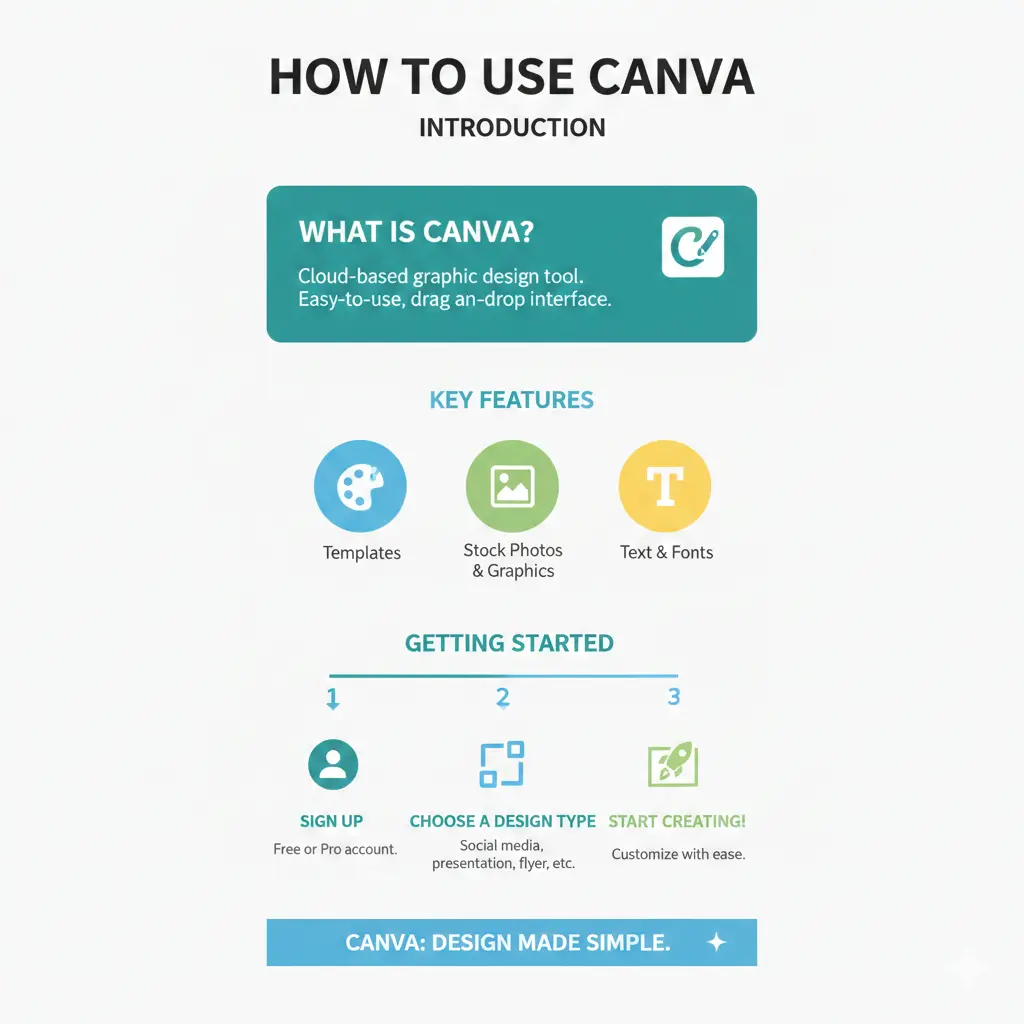
At a Glance — How to Use Canva (click to enlarge)
Getting Started with Canva
Speaking of which, getting started with Canva is a straightforward process that requires minimal technical expertise. You can sign up for a free account by visiting the Canva website and clicking on the "Sign up" button. From there, you'll be prompted to enter your email address, choose a password, and provide some basic information about yourself. Canva also offers the option to sign up using your Google or Facebook account, which can save you time and effort.
Once you've signed up, you'll be taken to the Canva dashboard, which provides access to a wide range of design tools and features. The dashboard is divided into several sections, including a toolbar at the top, a design area in the center, and a sidebar on the left. You can use the toolbar to access various design tools, such as shapes, fonts, and images, while the design area is where you'll create and edit your designs. The sidebar provides access to your designs, folders, and other features, such as templates and collaborations.
Exploring the Canva Dashboard
Let's take a look at a specific example to illustrate how the Canva dashboard works. Suppose you want to create a social media graphic for your business. You can start by clicking on the "Create a design" button on the dashboard, which will take you to a page where you can choose a template or start from scratch. From there, you can use the design tools to add text, images, and other elements to your graphic. For instance, you can use the drag-and-drop interface to add a background image, and then use the text tool to add a headline and some body text. As you work on your design, you can use the sidebar to access your designs and folders, and to collaborate with others in real-time.
As you explore the Canva dashboard, you'll notice that it's highly customizable, with a range of features and tools that can be tailored to your specific needs. For example, you can use the folder system to organize your designs, and the search function to quickly find specific designs or templates. You can also use the dashboard to access Canva's design school, which provides a range of tutorials and courses to help you improve your design skills.
Designing with Canva
And this is where things get practical. With Canva, you can create stunning visual content without needing extensive design experience. To get started, you'll want to create a new design. You can do this by clicking on the "Create a design" button on the Canva homepage. From there, you'll be prompted to choose a template or start from scratch. If you're new to design, using a template is a great way to get started. Canva offers a wide range of templates for various design types, including social media graphics, presentations, and infographics.
Once you've selected a template, you can customize it to fit your needs. You can add your own text, images, and elements to make the design your own. Canva's drag-and-drop interface makes it easy to add and arrange elements on your design. For example, if you're creating a social media graphic, you can use Canva's built-in photo library to add a background image, and then add text and other elements on top. You can also use Canva's design elements, such as shapes, icons, and graphs, to add visual interest to your design.
A great example of how to use Canva's design elements is to create a visual hierarchy in your design. This means using size, color, and placement to draw the viewer's eye to the most important elements of your design. For instance, you might use a large, bold font to highlight a headline, and then use smaller text to provide supporting information. You can also use Canva's color palette tool to choose a color scheme that fits your brand and design style.
As you work on your design, you can use Canva's real-time collaboration feature to work with others in real-time. This is especially useful if you're working on a team project or need to get feedback from others on your design. You can also use Canva's version history feature to track changes to your design and revert back to previous versions if needed.
Advanced Canva Features
But here's where it gets interesting. Once you've mastered the basics of Canva, you can start exploring its advanced features to take your designs to the next level. One of the most exciting features is the ability to add animations to your designs. You can use animations to create interactive presentations, social media posts, or even websites. For example, you can create a animated logo that changes color or shape when you hover over it. To add an animation, you can use the "Animations" tab in the top menu bar, where you can choose from a variety of pre-made animations or create your own custom animation.
Another advanced feature of Canva is its collaboration tool. This feature allows you to invite others to edit your design in real-time, making it perfect for team projects or client work. You can assign different roles to team members, such as "editor" or "viewer", to control the level of access they have to your design. For instance, you can use this feature to work with a client on a design project, where you can make changes and updates in real-time and get instant feedback. To collaborate with others, you can click on the "Share" button in the top right corner of the screen and enter the email addresses of the people you want to invite.
A great example of how to use Canva's advanced features is a case study by a marketing agency that used Canva to create an animated social media campaign for a client. The agency created a series of animated posts that were designed to engage the client's audience and increase brand awareness. The campaign was a huge success, with a significant increase in engagement and followers. The agency was able to use Canva's collaboration feature to work with the client in real-time, making changes and updates to the campaign as needed. This allowed them to respond quickly to feedback and make data-driven decisions to optimize the campaign.
You can also use Canva's advanced features to create custom designs for specific industries or use cases. For example, you can use the "Custom Dimensions" feature to create designs that are optimized for specific social media platforms or devices. You can also use the "Brand Kit" feature to create a consistent brand identity across all your designs. By using these advanced features, you can take your designs to the next level and create professional-looking graphics that engage and inspire your audience.
Optimizing and Sharing Your Designs
Once you've created your design in Canva, you'll want to optimize it for different platforms and share it with your audience. You can start by considering the dimensions and file type required for each platform. For example, if you're sharing a design on Facebook, you'll want to use a minimum of 1200 x 630 pixels, while Twitter requires a minimum of 440 x 220 pixels. You can use Canva's built-in resizing tool to easily adjust your design to fit different platforms.
A great example of optimizing designs for different platforms is a case study by HubSpot, which found that using platform-specific dimensions can increase engagement by up to 20%. They used Canva to create social media graphics for Facebook, Twitter, and LinkedIn, each with its own unique dimensions and file type. By doing so, they were able to increase their social media following by 50% in just a few months. You can achieve similar results by taking the time to optimize your designs for each platform.
Sharing Designs on Social Media
When sharing your designs on social media, you'll want to consider the type of content that performs well on each platform. For instance, Instagram is a visually-driven platform, so you'll want to use high-quality images and graphics. You can use Canva's Instagram story templates to create engaging and interactive content. On the other hand, Twitter is more fast-paced, so you'll want to use eye-catching graphics and concise text. You can use Canva's Twitter post templates to create effective and engaging tweets.
To share your designs on social media, you can use Canva's built-in sharing feature, which allows you to directly share your designs to various platforms, including Facebook, Twitter, and LinkedIn. You can also download your designs as JPG or PNG files and upload them to your social media accounts. By optimizing and sharing your designs effectively, you can increase your online presence and engage with your audience more effectively. Can you think of other ways to use Canva to optimize and share your designs?
By following these tips and using Canva's features, you can create and share high-quality designs that resonate with your audience. You can also experiment with different file types and dimensions to see what works best for your specific use case. With practice and patience, you can become a master of optimizing and sharing your designs, and take your online presence to the next level.
Empowering Your Creativity
With Canva, you now have the tools to bring your ideas to life and create stunning visual content that resonates with your audience. By applying the design principles and techniques outlined, you can craft compelling stories and communicate your message with clarity and precision. As you start creating with Canva today, remember that design is a process of experimentation and iteration. What will you create first - a social media post, a presentation, or a brand new logo?